Free simulator · real labs

Learn how networks work.
Then build one for real.

Lessons free to read with no account, and a full browser simulator on a free account — nothing to install. When you need actual Cisco, Juniper or Arista images running on real interfaces, that is here too.

✓Free, permanently ✓Nothing to install ✓120 platforms
Lessons need no account. The simulator needs a free one, and runs in this browser.
R1 — console
R1# show ip ospf neighbor

Neighbor ID     Pri   State      Dead Time   Address      Interface
10.0.0.2          1   FULL/DR    00:00:34    10.1.12.2    Gi0/0
10.0.0.3          1   FULL/BDR   00:00:31    10.1.13.3    Gi0/1

R1# show ip route ospf | include 10.2
O        10.2.0.0/24 [110/2] via 10.1.12.2, 00:04:11, Gi0/0

R1# 
The forty-five second tour

A lab coming up, from an empty canvas to a real capture

Nothing here is a mock-up of a different product. These are the real commands, the real boot messages, the real interface names and the real columns of the capture window — playing at the speed you would see them.

znetlab.com/lab · R1 ⇆ SW1 ⇆ PC1 45 seconds
5 · What it costs

Every lesson and the whole simulator:
free, permanently.

Not a trial and not metered. The simulator runs in your own browser, which is why serving it costs us nothing. The lab server is where plans start.

No cardNothing to install120 platforms
Motion is off, as you asked
It plays itself, pauses while you are reading elsewhere, and stops altogether if your system asks for less motion — pick any chapter to see that one.
The short version

What ZNetLab is

One account, two ways to practise: a simulator that runs inside this browser tab, and a lab server that boots the vendor images you are licensed to run.

Most people learning networks hit the same wall twice. The first time is at the start, when the software costs money, or will not install, or wants a machine with more memory than the one they have. The second comes later, when the simulator runs out of road — the thing they now need to practise is a real configuration on real software, and a teaching tool cannot show it to them.

ZNetLab is built for both walls. The teaching half is a complete simulator written in JavaScript. It runs in your browser, on your own machine, which is why it is free and will stay free: serving it costs us nothing. It speaks IOS-style and Junos-style syntax, it checks your work as you go, and it covers routing, switching, MPLS, QoS, firewalls, SD-WAN and IPv6.

The lab half runs actual vendor images — IOSv, CSR1000v, Nexus, ASAv, vSRX, vEOS and the rest — under Dynamips, IOL or QEMU on a Linux server, with consoles you can reach from the page or from your own terminal, and captures taken by tcpdump that open in any protocol analyser. ZNetLab ships no vendor software: you supply the images you are licensed to run, which is the same position any honest tool in this field takes.

Nothing is installed on your computer for either half. There is no virtual machine to keep alive, no hypervisor to configure, and no download that your work laptop will refuse. A browser is the whole requirement.
Learn & Simulate

Runs in your browser
Free

A simulator that speaks IOS-style and Junos-style syntax, with guided labs that check your work. It runs entirely on your machine, so it costs nothing to give away — and that is the whole reason it is free rather than a trial.

Open the simulator →

Real labs

Runs on a lab server
Free tier + Pro

Actual vendor images — IOSv, CSR1000v, Nexus, ASAv, vSRX, vEOS — booting under Dynamips, IOL or QEMU on a server, with consoles you can reach from your own terminal and captures that open in any protocol analyser. Nothing to install on your machine.

Open the lab platform →
See it first

This is the simulator

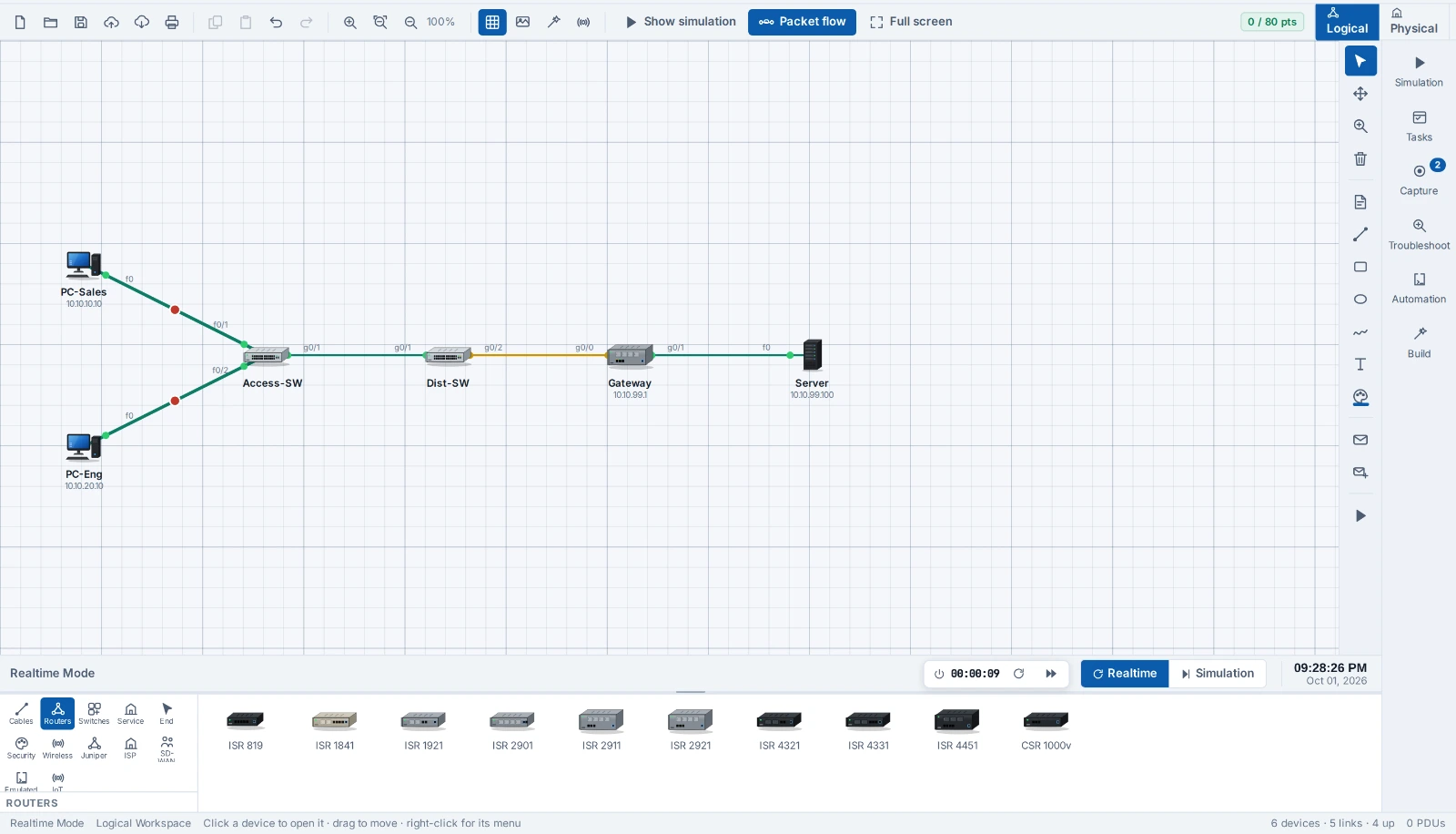
Not an artist's impression and not a competitor's screenshot — the actual workspace, captured from the running app.

znetlab.com/learn/lab
The ZNetLab simulator: two PCs, an access switch, a distribution switch, a gateway router and a server cabled together on a grid, with interface names on every cable, a device shelf along the bottom and tools for simulation, capture and troubleshooting down the right-hand side.
Enterprise campus — VLANs, trunking and router-on-a-stick, one of the thirty-one labs that ship with the simulator, opened with its solution applied. Every cable carries the interface name at each end; the shelf along the bottom holds the device catalogue; the status bar counts devices, links and packets in flight. Click a device and its console opens, with the same command completion a real one has.
Packet by packet

Watch the packet, not a progress bar

The hard part of networking is not typing the commands. It is knowing what happened between the device that sent and the device that did not answer.

PC Your PC ARP for the gateway SW Access switch learns the MAC R1 Router looks up the route FW Firewall checks the policy SRV Server answers ICMP echo request → ← echo reply

One ping, five hops. In the simulator you can stop it at any of them and read the frame.

  • Your PChas an address and a gateway, and no idea yet what MAC to send to — so the first frame on the wire is an ARP, not the ping
  • Access switchlearns where that MAC lives, floods what it does not know yet, and tags the frame into its VLAN
  • Routerstrips the frame, matches the destination against its routing table, decrements the TTL and builds a new frame for the next hop
  • Firewallchecks the policy for this zone pair, opens a session if it passes, and silently drops it if it does not
  • Serveranswers, and the whole sequence runs backwards — which is why a one-way failure is so much easier to see here than to reason about

On a real lab, these are real frames

The simulator animates every frame and will pause on one so you can open it and look — the headers, the ARP that went first, the decision each device made. That is a teaching view, and it is honest about being one: a simulated frame is always labelled as simulated.

On the lab platform the same picture comes from the wire. Each link is a Linux bridge, and a capture is tcpdump running on it. What you download is a plain .pcap — open it in your own analyser, send it to a colleague, attach it to a ticket. Nothing has been reconstructed for you.

  • →Capture on any link while the lab runs, and stop it without stopping the devices
  • →Condition a link — bandwidth, delay, jitter, loss — and watch the protocol react the way it does on a bad circuit
  • →Reach every console from the page, or over plain telnet from the terminal you already use; they share one session, so two people can watch one router
  • →Inject a fault and hand the lab to someone else to find
Capture

A protocol analyser, not a picture of one

A capture reads one cable — the server runs tcpdump on that link and the frames arrive in the window as they cross it. What you export is a real .pcap: little-endian, LINKTYPE_ETHERNET, read by every analyser, tshark and tcpdump, because it is the format and not an impression of it.

Every frame the server reads, as it reads it. The window keeps your place when you scroll back and follows the newest frame when you are at the bottom.

Five views, because there are five questions

  • 1Overview — is there traffic, what kind, and between whom: the rate over time, the protocol mix and the talkers, as figures. Every bar is a filter
  • 2Protocols — a reference of 29 protocols audited against this cable: which ones should be here, whether their timers are the ones they claim, and the trouble each one causes
  • 3Conversations — one card per pair of addresses: what they are exchanging, which way, since when, and how long the far end takes to answer, layer 1 to 7
  • 4Packets — the list, every header decoded layer by layer, and the bytes. Click a field to light up its bytes; click a byte to find its field
  • 5Flow — one lane per host, one arrow per packet, in time order. Click an arrow to open that packet

The keys you already have in your fingers

  • →Ctrl+F finds in the list, in every decoded layer, or in the bytes as hex or text — Ctrl+G goes to a packet by number
  • →Click a heading to sort; choose your own columns — Δ time, ports, MAC pair, origin — and they are remembered
  • →End jumps to the newest frame and starts following again; Home goes to the first
  • →Display filters you already type: ip.addr == 10.0.0.1 and icmp, tcp.port == 179, !arp — a term it cannot parse is reported, never silently dropped
  • →Right-click a frame: filter on its source, destination, conversation or protocol · Follow TCP stream · mark it · copy it
  • →Open it in your own analyser — the same capture, live over HTTP, nothing to download first

A simulated frame is always labelled as simulated, in the list and in the exported file. The one thing an analyser must never do is let you mistake a drawing for evidence.

Operations

What is broken, where it is, and who got in

A lab with eleven devices in it is a small network, and a small network still needs the screen every network has: not graphs to admire, but a list of what is wrong, attached to the thing that is wrong with it, with what to do about it.

A site is a label you typed — “HQ”, “Branch-2” — and a place with nothing running in it is reported once, against the place.

Eleven rules, and every one is a state the server is already in

  • →A device that failed to start, with the emulator's own reason · a device that is down among devices that are not · a whole site with nothing running
  • →An interface drawn as cabled but in no bridge · one administratively down, naming what is at the far end · a line protocol flapping
  • →A device at 90% of a core — which on Dynamips means its idle-PC is wrong for that image · a device about to be stopped as idle, while there is still time to say otherwise
  • →AAA on three kinds of evidence, each labelled: what the configuration says, whether that server is a device in this lab and running, and whether TACACS+ or RADIUS frames have actually crossed a captured cable

Acknowledged is not the same as fixed

An alarm you acknowledge stays on the screen, greyed, with your name and the time on it. It leaves when the state it describes is gone — which is the only thing that can honestly clear it. An alarm's identity is what is wrong with what, so the same fault on two ports is two alarms and a restart does not resurrect one you have already seen.

Beside it: who signed in, who was refused, who was locked out, and whose console was opened on which device — ZNetLab's own authentication trail, kept separate from the devices' AAA, because conflating them would be claiming to know something it does not.

How the operations screen works →

Why it is built this way

What is in the box

Both halves share one account, one design and one set of ideas. You move between them without noticing a seam.

Real command syntax

The simulator does not paraphrase. show ip protocols prints what a router prints, including the lines everyone forgets are there.

Devices are data, not code

An administrator uploads an image and a device appears on the shelf, with the right RAM, disk bus and interface naming. Nobody edits JavaScript.

Hosts that cost nothing

The Virtual PC is a Linux network namespace and the LAN Switch is a kernel bridge. Real ARP, real MAC learning, no licence.

Captures you can trust

On a real lab the frames come from tcpdump on the bridge. Simulated frames are labelled as simulated, always.

Your terminal, not ours

Every running device gets a telnet port. Use the console in the page, or the terminal client you already have — they share one session.

No images bundled

Vendor software is licensed by its vendor. You supply what you are licensed to run — which is the only position a tool that bundles nothing can take.

Nothing held back

Everything that is included

There is no feature matrix with crosses in it. Every plan, including the free one, has every feature — what a plan changes is how many devices in a lab may need a vendor image, and how many labs you may run at once.

In the browser simulator

  • ✓IOS-style and Junos-style command syntax, with ? help and tab completion
  • ✓Routing: static, RIP, EIGRP, OSPF, IS-IS, BGP and redistribution between them
  • ✓Switching: VLANs, trunking, spanning tree, EtherChannel, router-on-a-stick
  • ✓MPLS label switching and L3VPN, SD-WAN control plane, PPPoE, QoS policies
  • ✓Zone-based firewall, NAT, access lists, IPv6 on every protocol that has it
  • ✓Thirty-one guided labs that check each task and award the points themselves
  • ✓Fault injection — break a lab deliberately and hand it to someone to find
  • ✓Packet capture with .pcap export, and a frame-by-frame simulation view
  • ✓A subnetting trainer, and a protocol reference covering 29 protocols and their timers
  • ✓Logical and physical views, racks, clusters and notes on the canvas
  • ✓Topologies up to sixty devices, saved to your browser and to your account

On the lab platform

  • ✓120 platforms recognised from their image filenames
  • ✓Dynamips, IOL and QEMU, chosen for you from the image you uploaded
  • ✓Virtual PC, LAN Switch and NAT Cloud need no image and never count
  • ✓Consoles in the page, and over telnet for any client you prefer
  • ✓Real tcpdump capture on any link, exported as .pcap
  • ✓Five analyser views, Ctrl+F find, sortable and choosable columns, Follow TCP stream
  • ✓The same capture piped live to your own analyser, with nothing to download
  • ✓An operations screen: sites, alarms attached to what raised them, and the AAA evidence
  • ✓Link conditioning: bandwidth, delay, jitter and loss, changed while running
  • ✓Start, stop and wipe a device without touching the rest of the lab
  • ✓Idle devices are offered a reprieve and then stopped, so nothing bills you while you sleep
  • ✓Your lab stays yours: one browser, one tab, and it is waiting where you left it

Account, team and admin

  • ✓One account for both halves, with your plan and usage on the profile page
  • ✓Profile you control: picture, banner, personal and company details
  • ✓Company verification, so an employer's account is visibly an employer's
  • ✓An administrator can raise a single user's device count, lab count or platform list
  • ✓Custom plans built by an administrator for a company that needs its own
  • ✓Every running device names the person on it, with the time and place
  • ✓Search and filter on every list of devices and images, everywhere
  • ✓Lessons, articles, a forum and a knowledge base that the help search reads
  • ✓A readiness check for the whole site, and product analytics the server counts itself
  • ✓A marketing workbench: competitor comparisons, keyword research and the week's tasks
Free to read, no account

What you can read here, and what you come away knowing

The lessons, the articles and the guide are open to anyone — no account, no trial, no email. An account is for running things: the simulator, and labs on the server.

31 guided labs

Labs that mark themselves

Each one is a topology and a list of tasks, and each task is checked against the configuration you actually typed — not against a button you pressed.

  • Static routing between two LANs, and why the second one is unreachable
  • OSPF, then a broken link — and what the LSDB does about it
  • VLANs, trunking, spanning tree, EtherChannel, router-on-a-stick
  • EIGRP, IS-IS, BGP, and redistribution between protocols that disagree
  • MPLS L3VPN, SD-WAN control plane, PPPoE, QoS, zone-based firewall
  • IPv6 on every protocol that has it, and a Junos-style lab for the syntax
  • Network automation: the same change made by hand and by script

Open the labs →

The guide

Four labs written out, step by step

Not a feature list. Four labs you can follow to the end, in the simulator and on the real platform, with the output you should see at each step and what it means when you do not see it.

  • Lab 1 · Static routing between two LANs
  • Lab 2 · OSPF, and what happens when a link breaks
  • Lab 3 · A switched LAN with no vendor image at all
  • Lab 4 · Routing between two LANs with a real router
  • How to read a capture, start to finish — and the IPv6-only capture trap
  • The operations screen, every alarm and what each one means

Read the guide →

Articles and the forum

Write-ups of things that broke

Written by people who had to fix them, with the topology and the real output — and a lab attached where there is one, so you can reproduce the fault yourself.

  • BGP route reflectors: the failure modes that appear past two RRs
  • OSPF LSA types, on a topology you are invited to break
  • EVPN route types 1–5, decoded one packet at a time
  • MTU black holes: why ping works and SSH hangs
  • Nornir against Ansible, honestly · subnetting without a table
  • A forum where the question comes with show output attached

Browse the articles →

Protocol reference

29 protocols, and what each one is for

Inside the analyser: which protocols belong on the cable you are reading, what their timers are supposed to be, what the packets themselves say they are, and the trouble each one is famous for.

  • ARP · ICMP · OSPF · EIGRP · RIP · BGP · IS-IS · LDP · BFD · PIM · IGMP
  • HSRP · VRRP · GLBP · STP · CDP · LLDP · LACP · VTP · UDLD
  • DHCP · DNS · NTP · SNMP · Syslog · TACACS+ · RADIUS · Telnet · TCP keepalives
  • Each with its own hello and dead timers, checked against the frames seen
Skills, not screenshots

What you can actually do afterwards

The point of all of it. These are the things people cannot do before and can do after, which is the only honest measure of a lab platform.

  • Read a capture and say which device made the wrong decision
  • Tell a layer-2 problem from a layer-3 one without guessing
  • Build a lab from a diagram and know which cable you are reading
  • Recognise an adjacency that never formed, and why — MTU, timers, area, auth
  • Prove a device is talking to its TACACS+ server rather than assuming it
  • Hand a broken lab to somebody else, and find one they broke for you
Knowledge base

The answers, searchable from inside

Built from the handbook that ships with the server, so the help search answers from the same text the documentation does — rebuilt on every start, so it cannot drift away from what the product does.

  • Which images work, and what each platform needs
  • Hosting it yourself: the flags, the ports, the permissions
  • What to do when a device will not start, with the log that says why
  • Licensing, plans, and what counts as a device that needs an image

Everything on this site →

No overclaiming

What ZNetLab does, and where it stops

Four places ZNetLab is the wrong answer, written down before you pay rather than discovered afterwards. If one of them is your situation, the honest recommendation is not us.

The images are yours, and that cuts both ways

ZNetLab ships no vendor software at all. You supply what you are licensed to run, and ZNetLab's job is to recognise it and boot it correctly.

What that buys you

120 platforms are recognised from the image filename alone, each with the memory, disk bus, NIC model and interface naming it actually needs — so an image library you already have works unchanged, with no template to write by hand. Cisco, Juniper, Arista, Fortinet and the open-source routers sit in one topology instead of one vendor's.

Where that leaves you short

If you hold no licence and need genuine IOS-XE, NX-OS or IOS-XR, nothing on our side substitutes for a licence on yours. That is a purchase from the vendor, and no amount of platform engineering here changes it. Three device types work before you own a single licence; the rest wait on you.

The simulator is a simulation, and says so

The free half reimplements protocol behaviour in JavaScript rather than running vendor code, which is exactly why it opens instantly and costs nothing to serve.

What that buys you

It starts in a browser tab with nothing installed, marks thirty-one labs against the state of the network rather than the text you typed, and never pretends: a command it does not implement is refused with the reason, and a simulated frame is labelled simulated in the list and in the exported file.

Where that leaves you short

What it knows has an edge, and you will reach it. The day you need a command it was never taught, or the specific way one release behaves, a simulation cannot answer — that is the day you move to the lab server and a real image. It is the same account, which is the point, but it is not the free half.

Real labs run on a server, not on your laptop

Devices boot under Dynamips, IOL or QEMU on a Linux machine, and you reach their consoles over the network.

What that buys you

A six-device lab does not need six devices' worth of your own memory, and it does not stop when you close the lid. Nothing is installed on your computer, so a managed laptop cannot refuse it, and an evening that gets interrupted costs nothing — the lab is there tomorrow exactly as you left it.

Where that leaves you short

It needs a network to reach. If you want a lab that runs on hardware you own, entirely offline, on a train or behind an air gap, the hosted half is not that — and you can host ZNetLab yourself, but then the server and its memory are your problem rather than ours.

No emulator is hardware

Each link on a real lab is a Linux bridge and each capture is taken on it, so the frames and the timings are real in the sense that matters for protocols.

What that buys you

Captures you can act on rather than admire: a plain .pcap that opens in whatever analyser you already use, 29 protocols audited against the cable they crossed, and link conditioning — bandwidth, delay, jitter, loss — so you can watch a protocol behave the way it does on a bad circuit.

Where that leaves you short

Optics, line cards, power, cabling mistakes and the specific way a chassis fails are not reproduced here and will not be. If the exam or the change window you are preparing for turns on physical behaviour, you need the hardware, and we would rather say so now.

Real names only

What people say

We publish feedback only when a real person has said it and agreed to be named. That means this section fills up slowly, and that is the point of it.

Used ZNetLab for a lab, a course or a certification? Tell us how it went — the good and the parts that wasted your time. We will ask before we print anything, and we will print it as you wrote it.

Send us your feedback

From $0.00

Priced by the devices that need an image

Every lesson and the whole browser simulator are free, permanently — they run in your own browser, so serving them costs us nothing. What the paid plans buy is memory on a server booting real vendor images, and they are priced by how many devices in a lab need one. Virtual PCs are never counted, on any plan.

$0.002 devices
in one lab
$2.004 devices
in one lab
$3.006 devices
in one lab
$10.0010 devices
in one lab
$20.0020 devices
in one lab

Per month. A device counts only when it needs a vendor image — Virtual PCs, LAN Switches and NAT Clouds are unlimited on every plan, including the free one. Past twenty devices, talk to support.

See the plans and work out your cost
Before you sign up

Questions people ask first

The eight that come up before anybody signs up, answered in full rather than pointed at a sales page. Every answer is on this page whether you open it or not.

Ask something else

Is the network simulator really free?

Yes, and free means complete — it is not metered and nothing is held back for a paying account. Every lesson, every track and every level, unlimited attempts, topologies up to sixty devices, packet capture with .pcap export, automation and fault injection. Reading the lessons needs no account at all; the simulator needs a free one so it can save your work. It runs entirely in your own browser, so it costs nothing to serve. The paid plans buy time on a server that boots real vendor images, which is the part that costs money.

Does ZNetLab include Cisco IOS images?

No. IOS, Junos and other vendor software are licensed by their vendors, and redistributing them would be infringement. You supply images you are licensed to run — the only honest position a tool in this field can take. The built-in Virtual PC, LAN Switch and NAT Cloud need no image at all.

Do I need a virtualisation tool installed?

Not on your own machine. Emulation runs on a Linux lab server under Dynamips, IOL or QEMU and reaches you through the browser. Only the server administrator needs virtualisation.

Can I do CCIE-level labs without a Cisco licence?

For the protocols, yes. FRRouting, VyOS, MikroTik CHR, Cumulus VX and Arista vEOS are free, and between them cover BGP, OSPF, IS-IS, MPLS L3VPN, VXLAN with EVPN, IPsec, multicast and QoS. What they do not give you is Cisco's command syntax, which is what a Cisco Modeling Labs licence is for.

What do the paid plans actually buy?

Memory on a server, counted in devices. A plan sets how many devices in one lab may need a vendor image: Free is two at $0.00, Starter four at $2.00 a month, Standard six at $3.00, Advanced ten at $10.00 and Expert twenty at $20.00. Virtual PCs, LAN Switches and NAT Clouds need no image and are never counted, however many you connect. One account runs one lab at a time on every plan, because a lab belongs to the window that opened it. Every feature is in every plan, including the free one. Past twenty devices, or for a company account, talk to support and an administrator will build the plan around what you need.

Can I open the same real lab in two tabs or two browsers?

No, and that is deliberate. A real lab runs in one browser tab at a time. The window that started the work keeps it, and a second tab or a second browser is told so immediately rather than quietly starting a second set of devices you would be paying for. The browser simulator has no such limit, because it runs on your own machine and costs nobody anything. Signing in on a second device signs the first one out, so a phone and a laptop each need their own account.

What happens to my work when I close the tab?

The simulator saves as you go, into this browser, and reopens where you left off. You can also save a topology to your account — File → Save to the portal — and open it on another machine, or save it to a .nblab file and keep it yourself. On the lab platform a topology belongs to your account rather than to the tab, and devices left running are warned and then stopped after thirty idle minutes, so nothing bills you overnight.

Which vendors can I run besides Cisco?

Whatever you hold a licence for. ZNetLab recognises 120 platforms by their image filenames — Cisco IOSv, IOSvL2, CSR1000v, Nexus 9000v, ASAv and IOS-XRv; Juniper vSRX and vMX; Arista vEOS; Nokia, Huawei, HPE, Aruba and Extreme; Fortinet, Palo Alto, Check Point and Sophos on the firewall side; and the open-source routers MikroTik CHR, VyOS, FRRouting and Cumulus VX — and it sets the memory, disk bus and interface naming each one needs. The open-source ones are free to download and between them cover BGP, OSPF, IS-IS, MPLS, VXLAN and IPsec with no licence at all.

Start in the browser. Move to real images when you need to.

The simulator is free and opens in this tab. When a lesson stops being enough and you need genuine vendor software on real interfaces, the same account already has it — from $0.00, and you only ever pay for devices that need an image.